Connect Meta Pixel and Conversions API to a Velveteen Link
Updated July 28, 2026
Create or select a Web dataset in Meta Events Manager, then use its numeric dataset ID as the Pixel ID in Velveteen. In the dataset's Settings tab, generate a direct-integration Conversions API access token. Add both values on the Links Setup tab, test the connection, and assign it to each smartlink that should send Meta events.
Velveteen can send supported link activity to Meta through both the browser Pixel and the Conversions API. The Meta dataset is the container for those events, and its dataset ID is the same value Meta uses as the Pixel ID. Create the account-level connection once, then choose it on individual smartlinks.
What you need from Meta
Pixel ID
The numeric ID for the dataset or Pixel you want this link activity sent to.
Conversions API access token
A token generated for the same dataset in Meta Events Manager. Velveteen stores it securely and never displays it again.
Test event code
Optional, but useful while connecting. It routes test traffic into Meta's Test Events view so you can confirm the integration before launch.
Create a Web dataset in Meta
- 1
Open Events Manager
In Meta Business Suite, open Events Manager and confirm that you are working in the correct business portfolio. - 2
Choose Connect data
Use Connect data in the left navigation, select Web as the data source, then choose Connect. - 3
Name the dataset
Enter a recognizable name such as Artist name – Smartlinks. Meta may describe this as creating a Pixel; the resulting website events are stored in a dataset. - 4
Complete Meta's setup questions
If Meta asks for a website URL, enter the public campaign or artist URL you intend to promote. Choose the manual or do-it-yourself path when asked how you want to connect data; Velveteen provides the integration. - 5
Copy the dataset ID
Open the new dataset in Events Manager. Copy the numeric ID shown beside its name. Meta uses the same numeric value as the dataset ID and Pixel ID.
Tip
Generate the Conversions API access token
- 1
Select the dataset
In Events Manager, open Datasets and choose the same dataset whose numeric ID you copied. - 2
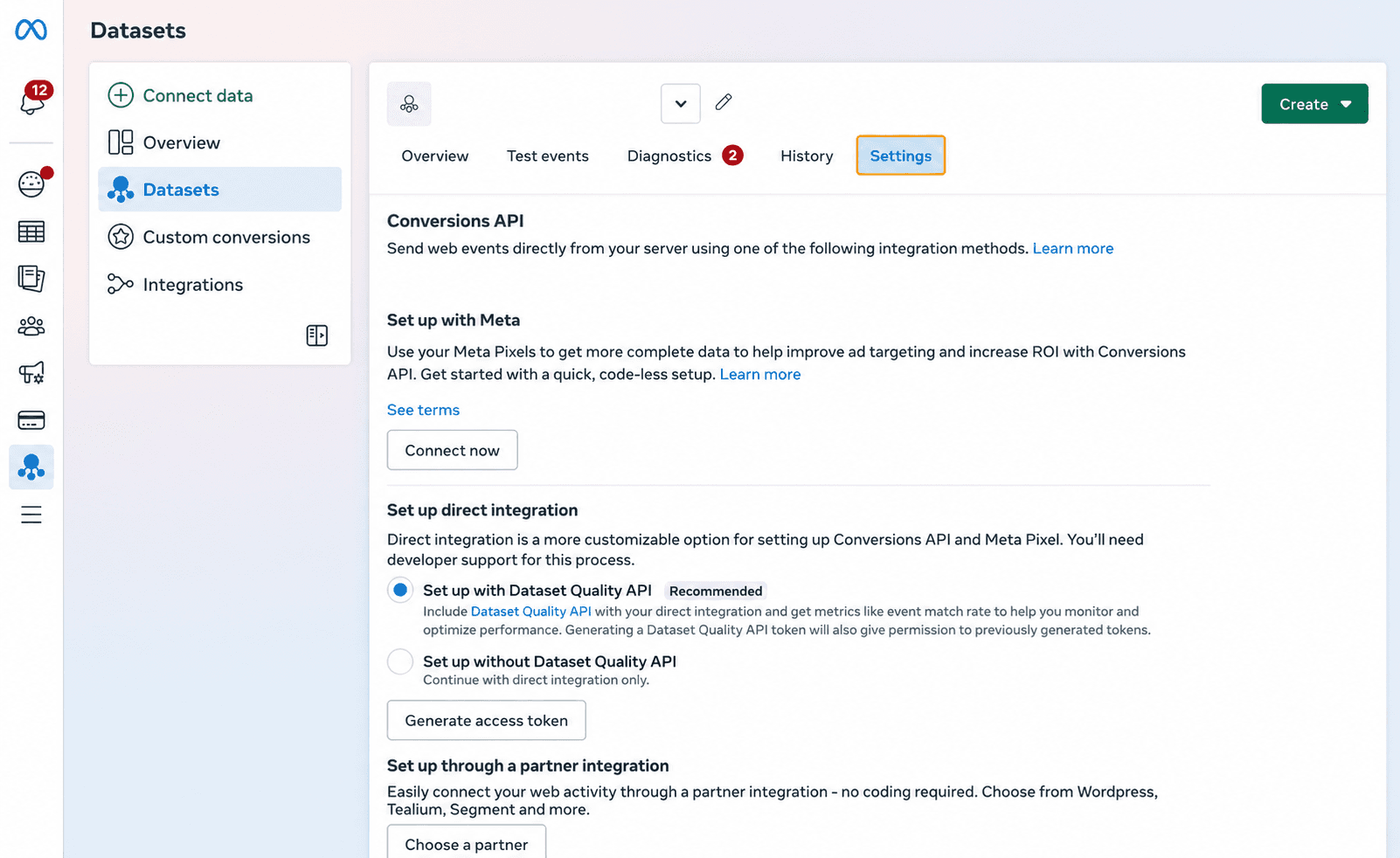
Open Settings
Use the Settings tab across the top of the dataset page, then scroll to the Conversions API section. - 3
Find Set up direct integration
Do not choose a partner integration for the Velveteen connection. In Set up direct integration, leave Dataset Quality API selected when available, or choose the direct-integration-only option if that is what your business requires. - 4
Generate the token
Choose Generate access token. Copy the full token when Meta displays it; treat it like a password and do not put it in a document, chat, screenshot, or public issue. - 5
Keep the token with its dataset
Use the token only with the dataset ID it came from. If Meta will not generate one, confirm that your account has permission to manage the dataset and its business assets.
Heads up
Add the connection in Velveteen
- 1
Open Links Setup
Go to Marketing, Links, then Setup and choose Add integration. - 2
Name the connection
Use a label that will still make sense when you assign it later, such as the artist, label, or campaign dataset name. - 3
Enter the Pixel ID
Paste the numeric Meta dataset ID into Pixel ID. Do not paste the business ID, ad account ID, or dataset name. - 4
Enter the access token
Paste the full token generated under that dataset's Conversions API direct integration settings. - 5
Add a test event code
Optional: open the dataset's Test events tab, copy the displayed test event code, and add it while validating the connection. - 6
Save and test
Save the integration, choose Test beside it, then confirm the event appears in Meta's Test events view. - 7
Assign it to a smartlink
Open the smartlink editor, go to Settings, choose the integration under Meta integration, and save or publish the link.
Tip
Verify before spending
Open the public smartlink yourself and perform the action you intend to optimize. In Meta Events Manager, confirm that the event arrives and that browser and server copies are deduplicated rather than counted twice.
Use an event that matches the campaign outcome. A page view, outbound click, and email signup are different signals and should not be treated as interchangeable conversions.
Heads up
Managing an existing connection
Edit an integration when its name, Pixel ID, token, or test event code changes. Leaving the token field blank while editing keeps the current stored token.
Removing an integration disconnects it from links that use it, so those links stop sending Meta events. The links themselves remain available.
Frequently asked questions
Where do I find my Pixel ID?+
Open Meta Events Manager, choose the Web dataset, and use the numeric ID shown beside its name. Meta uses the same number as the dataset ID and Pixel ID.
Should I create a new dataset?+
Create one when the business does not already have a suitable Web dataset. An existing dataset can be reused across multiple smartlinks when it belongs to the correct business and campaign measurement setup.
Where do I generate the access token?+
Open the dataset in Events Manager, choose Settings, scroll to Conversions API, find Set up direct integration, and choose Generate access token.
Is the Conversions API token required?+
Yes for the Velveteen Meta integration. It supports server-side event delivery alongside the browser Pixel.
Can I connect more than one Pixel?+
Yes. Give each integration a clear name, then choose the appropriate one on each smartlink.
Does adding an integration track every link automatically?+
No. After creating the account-level integration, assign it to each smartlink that should use it.
What happens if I remove an integration?+
Velveteen detaches it from affected smartlinks and removes the saved credentials. The links remain live but stop sending Meta events through that integration.
Related articles
Overview
Two link types for promoting a release: pre-save links before it is out and release-day links once it is live, plus how to create, track, and remove them.
Creating a link
Use Create link to choose a page type, then follow the catalog, detail, editor, and publication steps for that page.
Managing and removing links
Copy and open links, cancel a pre-save still being built, and choose whether to remove a release-day link from Velveteen only or from vlvtn.link as well.