Spotify Canvas Specs: Dimensions, Loops & Upload Setup

Spotify Canvas specs are strict: 3 to 8 seconds, vertical 9:16, 720 to 1080 px tall, MP4 or JPG, and no audio. A 720 x 1280 export is a practical 9:16 starting point. Canvas plays silently on Spotify's mobile Now Playing screen and is set per track in Spotify for Artists. It does not replace your cover art.
Lead visual
Platform growth is signal work
1
profile
2
release
3
saves
4
repeat listeners
Canvas length: any clip shorter or longer is rejected
vertical aspect ratio, the same as Stories and Reels
Spotify's current accepted height range
Canvas has no sound. Any audio track disqualifies it.
Key takeaways
- Canvas appears on the now-playing screen in the Spotify mobile app only. Desktop listeners don't see it.
- The specs are strict: 3 to 8 seconds, vertical 9:16, 720 to 1080 px tall, MP4 or JPG, and no audio track. All five constraints apply.
- Spotify reports more saves, shares, and listener adds on tracks with Canvas. That is first-party aggregate reporting, not a forecast for a particular release, so judge the asset by the quality of the visual and your own listener data.
- You set Canvas per track in Spotify for Artists. It's separate from your cover art and doesn't replace it.
- Prioritize Canvas on the tracks you're actively promoting. A Canvas on a track no one is hearing does less for you than one on your current single.
What is a Spotify Canvas?
When a listener plays your track on Spotify’s mobile app, the now-playing screen normally shows your cover art. A Canvas replaces that with a short looping clip. It plays silently on a loop the whole time the song is running, and stops when the listener pauses or moves to something else.
It’s a mobile-only feature. Desktop and Spotify Web Player don’t show Canvas. Your cover art still appears everywhere the Canvas doesn’t, so Canvas adds a layer on top of the existing visual identity of the track and leaves your cover art in place. If that cover isn’t finalized yet, get the album cover dimensions and specs right first, since the Canvas sits on top of it.
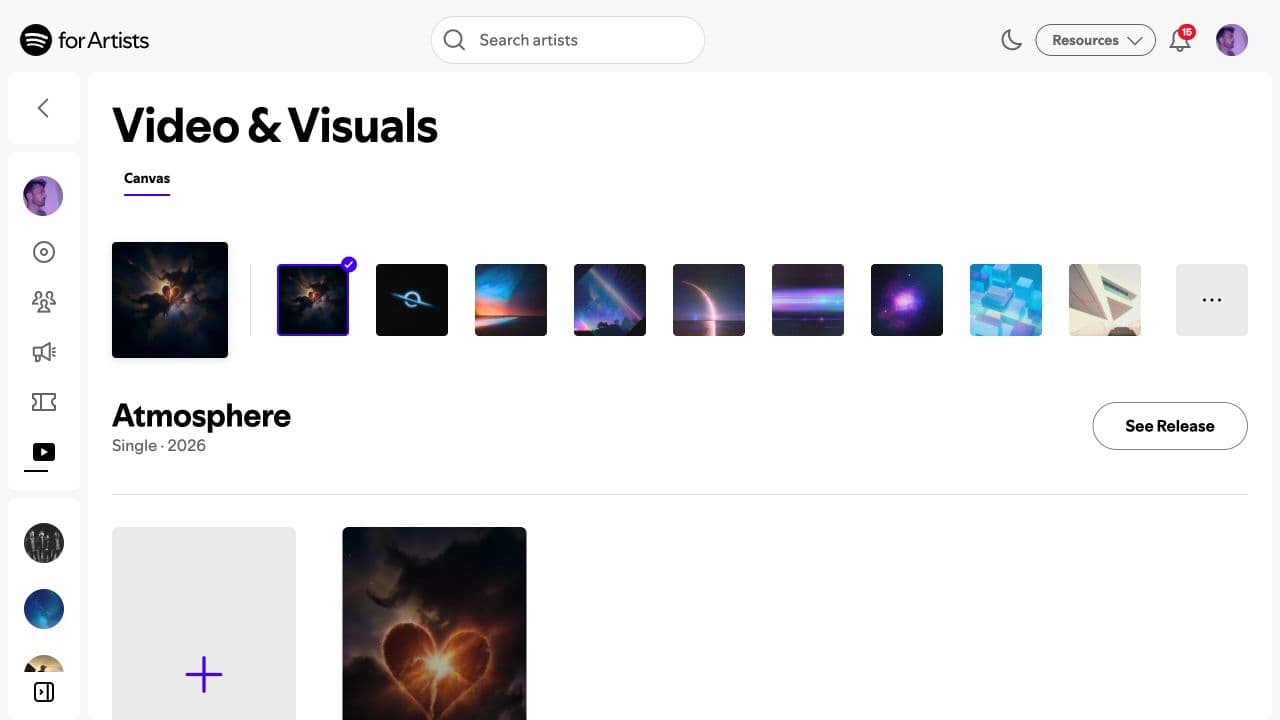
Canvas is set per track. A new album with ten tracks means ten separate Canvas slots. You don’t have to fill all of them, and there’s no penalty for leaving some blank. This is part of the Spotify for Artists profile toolkit alongside Artist Pick, your bio, and the other profile modules.
What Canvas specs does Spotify require?
Spotify’s current upload gate is specific. If you came here for Spotify Canvas size, dimensions, length, or requirements, use this checklist before export. Get any of these wrong and the upload can fail or look bad in playback.
Search-intent check
“Spotify Canvas size,” “Spotify Canvas dimensions,” “Spotify Canvas length,” and “Spotify Canvas duration” all point to the same export gate: a silent 9:16 MP4 or JPG between 3 and 8 seconds, with the vertical file height inside Spotify’s accepted 720 to 1080 px range.
| Requirement | What to export | |
|---|---|---|
| Length | 3 to 8 seconds | A clean loop; shorter or longer clips are rejected. |
| Size / ratio | Vertical 9:16 | 720 to 1080 px tall. A 720x1280px export is the safe 9:16 option. |
| Format | MP4 video or JPG still | Use MP4 for motion; use JPG only when the Canvas is intentionally still. |
| Audio | No audio track | Mute or remove audio before export, even if the clip is from a music video. |
Choosing between two 9:16 exports
A 720 x 1280 file and a 1080 x 1920 file both preserve the required 9:16 ratio and sit inside Spotify’s current height range. Use 720 x 1280 when you need a concrete starting size. Keep 1080 x 1920 when that is the native size of your finished edit. Spotify’s guidance gives a range, not a single mandatory pixel pair.
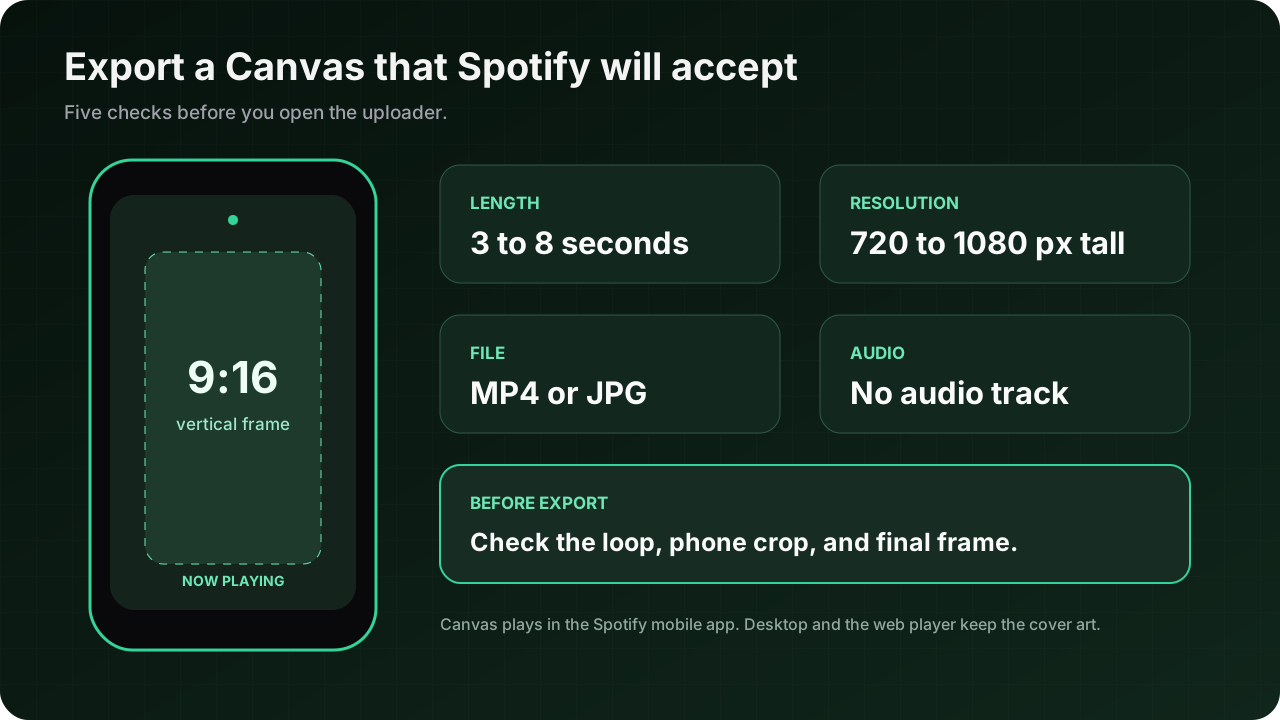
- Length: 3 to 8 seconds. Shorter than 3 seconds won’t be accepted. Longer than 8 seconds won’t be accepted. The loop repeats from the beginning each time, so if your clip has a hard cut at the end, that cut shows on every loop.
- Aspect ratio: 9:16, vertical. This is the same ratio as a phone screen in portrait mode, Instagram Stories, and TikTok. If you’re already making vertical content for social, the dimensions are the same.
- Resolution: 720x1280 pixels is the safe export size for a 9:16 Canvas. Spotify’s current upload-error guidance accepts 720 to 1080 px tall, so there is no reason to export above 1080 px tall.
- File type: MP4 for video, JPG for a still image that loops. Most Canvas uploads are MP4.
- Audio: none. Canvas is a silent visual. Any clip with an audio track will be rejected. If you’re exporting from a video editor, strip the audio before you upload.
The most common upload mistake
Exporting with audio left in the file. Spotify’s uploader will flag it. Before you export from your video editor, mute or delete the audio track entirely and re-export. It’s a small step that saves the back-and-forth.
Does Canvas help your numbers?
Spotify reports that tracks with a Canvas see higher saves, more shares, and more listener adds compared to tracks without one. They’ve published this from their own data. The mechanism is plausible: a moving visual holds a listener’s attention on the now-playing screen, and a listener who stays focused on the app is more likely to save or share the song than one who locks their phone and lets it play passively.
Treat those numbers as a platform average, not a prediction for your track. Spotify does not describe Canvas as an editorial-pitch requirement. Use it as a listener-facing visual, then compare saves, shares, and adds for the tracks you are actively promoting. A generic, low-quality, or off-brand clip is a reason to improve the asset, not a reason to assume the format itself will do the work.
A bad Canvas is worse than no Canvas. A blurry phone clip cropped to vertical is not what this feature was built for.
How do I set a Canvas in Spotify for Artists?
You need at least Editor access in S4A to upload a Canvas. If you haven’t claimed your profile yet, that’s the starting point: see how to claim your Spotify for Artists profile.
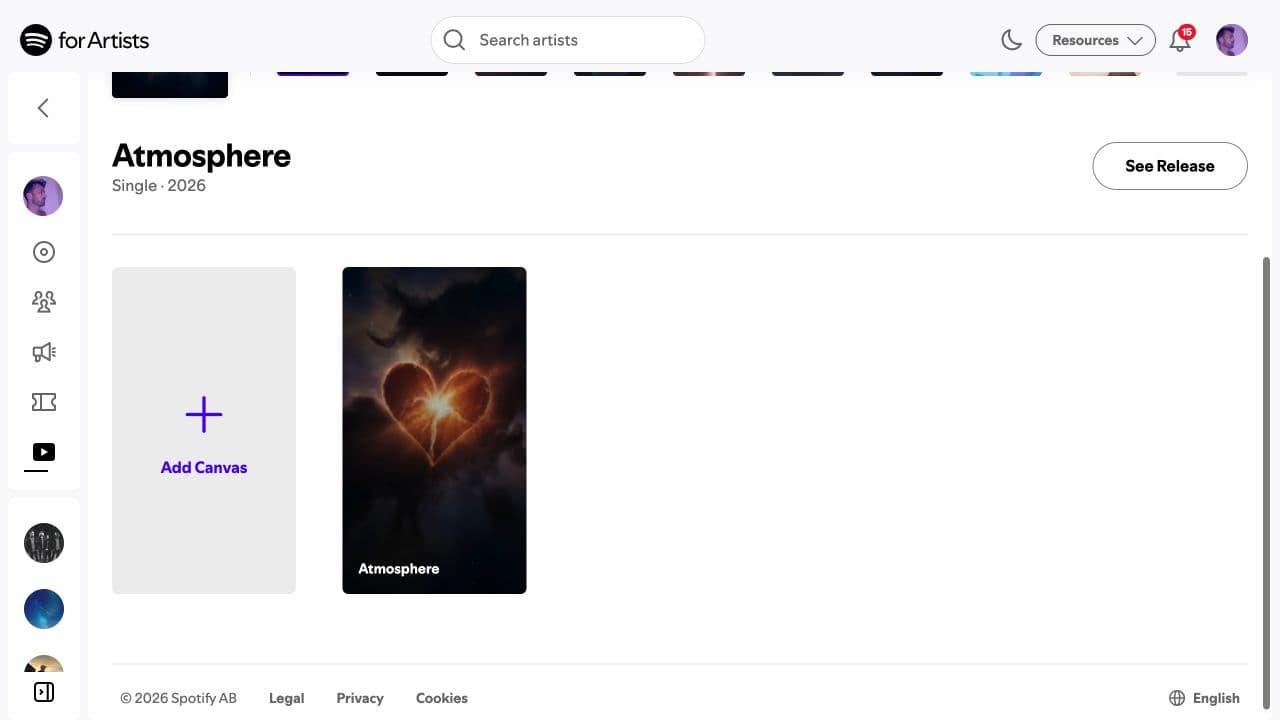
Once you’re in, open Music, select the track, and click Add Canvas. Upload the silent clip, preview it, and save. Spotify also supports editing Canvas from its mobile app. The Canvas is attached to that track, and you can replace or remove it from the same control when you have the required team access.
A Canvas on a track you’re about to pitch to editorial is worth having in place before the pitch goes in. It signals you’ve prepared the full release. Whether it moves the needle with editors specifically, Spotify doesn’t say. The export and upload are small tasks, so I would do them when the asset is ready.
Why isn't my Canvas showing in Spotify?
First separate an upload problem from a playback problem. If the Canvas is attached in Spotify for Artists but you cannot see it while listening, check the Spotify mobile app. Canvas does not play in the desktop app or web player. Spotify currently requires iOS 12 or later or Android 6.0 or later. In the mobile app, turn Data Saver off under Data-saving and offline, then turn Canvas on under Content and display.
If the upload control itself is missing, check access and recording rights. Spotify allows the first main artist on the track, or an artist listed as a main artist on both the track and release, to add Canvas with Admin or Editor access. Labels with split rights can add Canvas only to versions they own, so confirm that you are looking at the correct version before opening a support case.
Test the listener setting before replacing the file
A valid Canvas can look missing when Data Saver is on or Canvas playback is disabled. Check those two settings on a supported phone before exporting and uploading the clip again.
Pick an export size, then test playback
Spotify publishes a size range and aspect ratio, not one universal 9:16 pixel pair. A 720 x 1280 export preserves the ratio and gives you a concrete starting point. Test it on a supported mobile app with Data Saver off and Canvas playback on before replacing a file that already uploaded.
What makes a good Canvas?
The constraint of 3 to 8 seconds is the whole creative challenge. It has to loop without a jarring cut, it has to read as intentional at a glance, and it has to look good on a phone screen with the Spotify UI layered on top.
A few approaches that work. A slow zoom on a still image (a photo, a piece of artwork, something related to the release) cut to loop cleanly. A short clip from a music video cut to loop cleanly. Abstract motion graphics or an animated version of the cover art. Anything where a cold viewer understands in two seconds what they’re looking at and it feels like it belongs with the song.
Things that tend to work less well: random footage with no connection to the music, text-heavy clips that are unreadable at phone size, or anything that requires more than a few seconds of context to make sense. The viewer didn’t ask for this. It has to earn their attention fast.
How do Canvas, retired Clips, countdown videos, and full-length video differ?
These are separate Spotify surfaces, not interchangeable upload sizes. Canvas remains the silent 3-to-8-second Now Playing loop attached to a track. Spotify stopped accepting new Clips uploads on June 17, 2026, although existing Clips remain live and are moving into the Video tab. Countdown Page Clips are now called countdown videos and remain tied to eligible Countdown Pages. Full-length video upload is a separate, gradually rolling-out feature for eligible artists.
| Current role | Availability boundary | |
|---|---|---|
| Canvas | Silent track-level loop in Now Playing | Current upload path for eligible track owners with Admin or Editor access |
| Clips | Existing short artist videos in the Video tab | New uploads ended June 17, 2026 |
| Countdown video | Video attached to an eligible Countdown Page | Requires an eligible upcoming release and Countdown Page |
| Full-length video | Official video, live performance, session, or cover | Gradual eligibility; Spotify says these videos are royalty-bearing and may be chart-eligible |
Where do the Canvas rules come from?
Use Spotify's artist help pages as the source of record, then check your export against the uploader before release week. The specs page covers the hard file requirements. The guidelines and policy pages cover the softer problems: flashing cuts, cramped phone framing, distracting text, unrelated promo, or a clip that feels disconnected from the track.
pair your Canvas with a strong editorial pitch using the free Spotify pitch generator
Frequently asked questions
What is a Spotify Canvas?+
A Canvas is the looping visual that plays behind a track's now-playing screen on Spotify's mobile app. It loops continuously while the song plays and disappears when the listener pauses or skips. You upload one per track through Spotify for Artists. It's separate from your album artwork, which still appears on desktop and in other views.
What are the Spotify Canvas specs?+
3 to 8 seconds long, vertical 9:16 aspect ratio, 720 to 1080 px tall, and MP4 or JPG file format. Those are the current specs from Spotify's Canvas guidelines and upload-error documentation. A Canvas outside the length, size, dimensions, or aspect ratio can fail at upload.
Should I export 720 x 1280 or 1080 x 1920 for Spotify Canvas?+
Both are 9:16 exports and both fit Spotify's current 720 to 1080 pixel height range. Use 720 x 1280 as a practical starting point when you want the smaller accepted height. Keep a 1080 x 1920 source at that size when your edit is already built there. Spotify does not publish either pair as the one mandatory resolution.
Does Spotify Canvas help with streams?+
Spotify reports that tracks with a Canvas see more saves, shares, and listener adds compared to tracks without one. That's their own first-party data, and the mechanism makes sense: a moving visual holds a listener's attention longer. Whether it directly causes more streams in your specific case isn't something anyone can promise. It's one tool among several, not a magic switch.
Who can add a Canvas to a Spotify track?+
Spotify says the first main artist on the track, or a main artist listed on both the track and release, can add a Canvas with Admin or Editor access. You can set Canvas per track, so prioritize the songs you are actively promoting instead of treating it as a requirement for every track.

Get better release strategy in your inbox
Release planning checklists, royalty explainers, and artist strategy notes from Velveteen. No daily noise.
Was this useful? Send a signal or flag a correction.
Keep reading
Topic overview
Spotify for Artists guide
The free dashboard every artist should claim: how to get access, customize your profile and Canvas, set an Artist Pick, and run a native pre-save, with the eligibility gates called out.
Related guide
Artist Pick & profile
The profile modules you control: the Artist Pick you pin each release, the bio, images, Concerts, and Merch, and how to keep them current so the profile sells the music.
Related guide
Spotify video uploads
How Spotify's beta video uploader works, what you can upload, the file specs, and why it belongs beside Canvas in your release plan.
Related guide
Claim your profile
Getting access to your artist profile: how the request and verification works, the role it usually routes through your distributor, and adding team members.
Topic overview
Album artwork guide
The complete artwork workflow: one cross-platform digital master, the rules that trigger rejections, explicit-content notices, AI rights, and separate print files.
Write a stronger pitch in 30 seconds
Drop in your release context and get a critique-first Spotify pitch draft, weak spots, and a copy-ready description inside the 500-character limit.